 Lịch Âm Việt
Lịch Âm Việt on Windows: a Tour of the Vietnamese Lunar Calendar App
· 3 min read
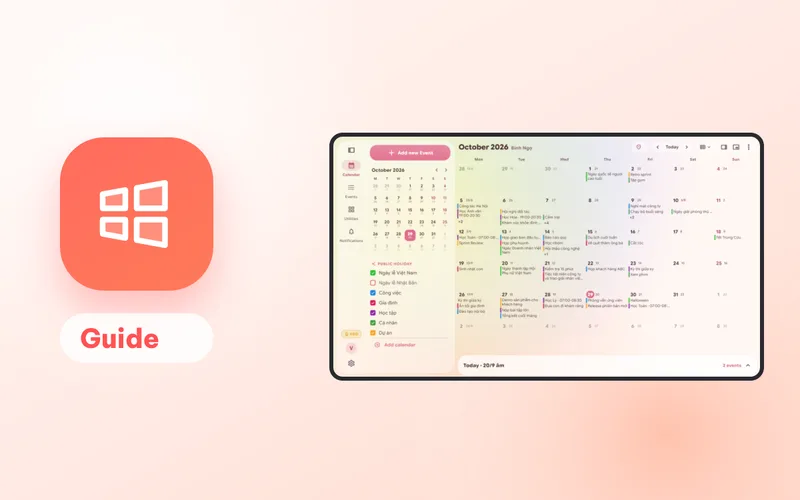
The Windows version of Lịch Âm Việt is not a stretched phone app. The window is laid out for a wide screen: a navigation rail on the left, a mini month and your calendars always in view, and the main calendar filling the rest. Every screenshot below is a real Windows 11 capture from 29 October 2026, which is the 20th day of the 9th lunar month of the Bính Ngọ year. They use the Liquid style (Settings → Theme → Style), with the app set to English.
Get it from the Microsoft Store. It runs on Windows 10 (version 1809 or later) and Windows 11.
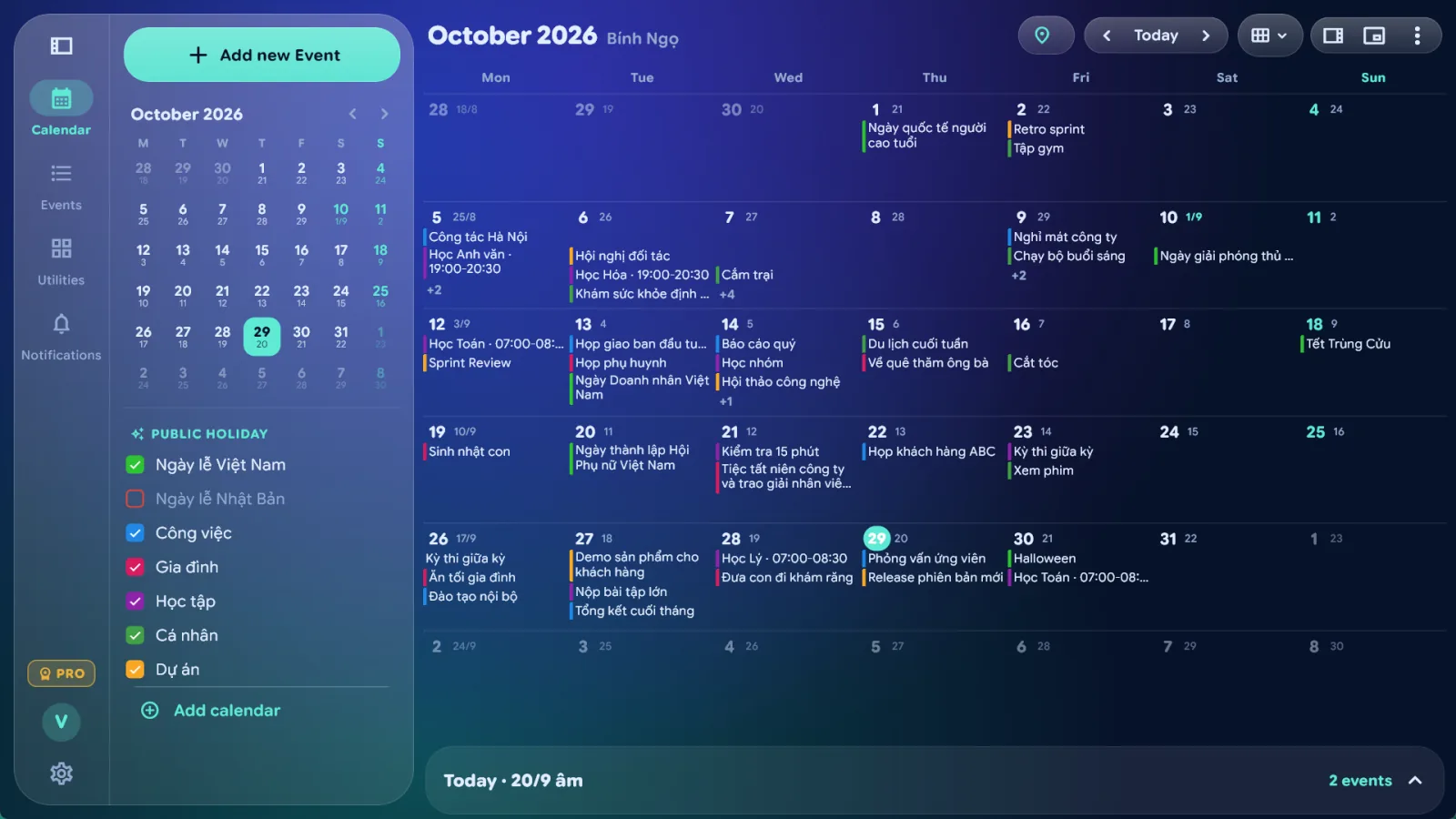
Month view: the lunar date under every day
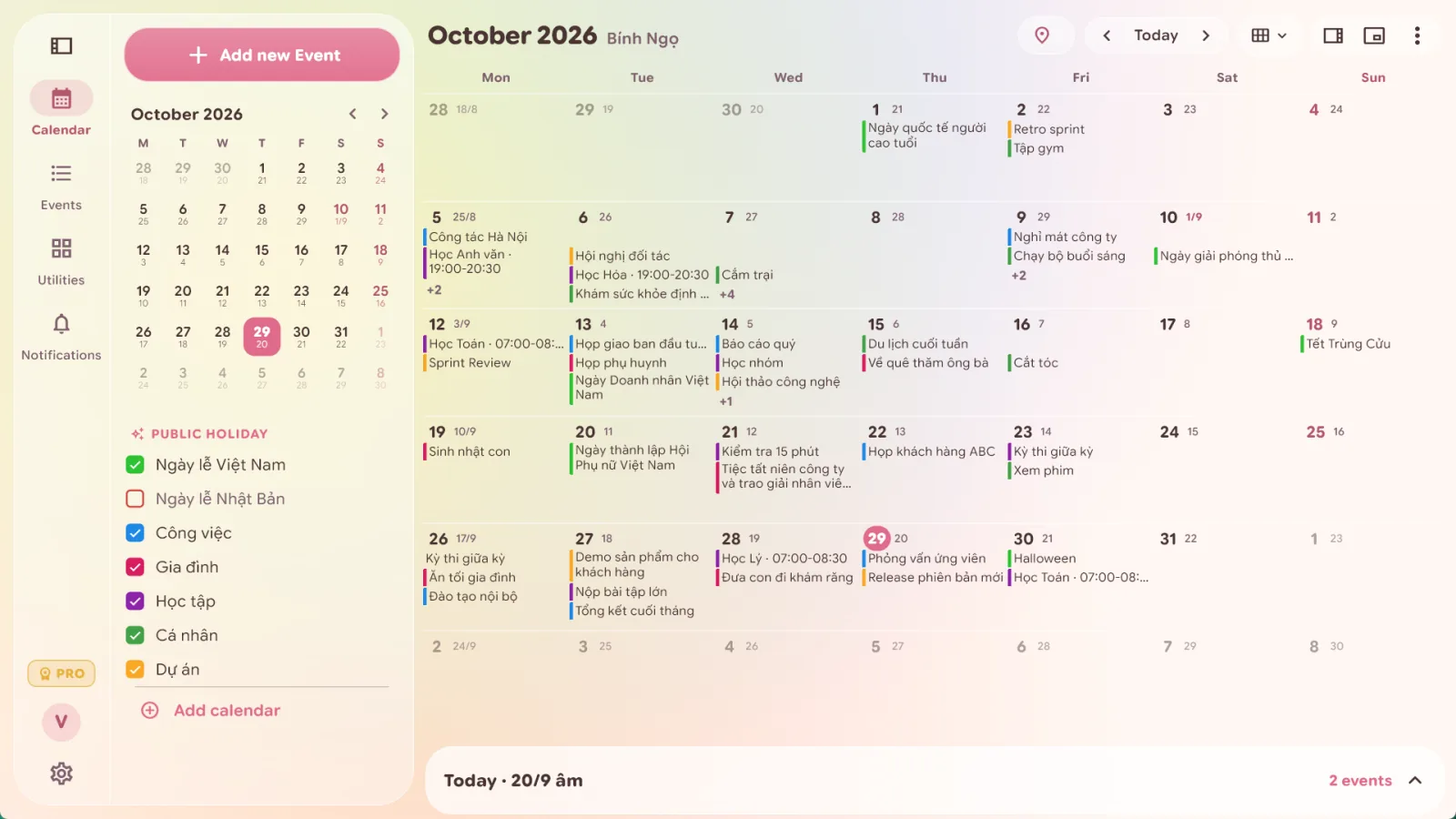
Each cell shows the solar day with the lunar day beside it; the first day of a lunar month also shows the month (1/9 on 10 October). Events sit inside the cells with a colour bar per calendar, and busy days get a +2 or +4 to expand.
The left column holds a big Add event button, a mini month for jumping around, and your calendar list, including the built-in Vietnamese holidays, each with its own checkbox.
Year view
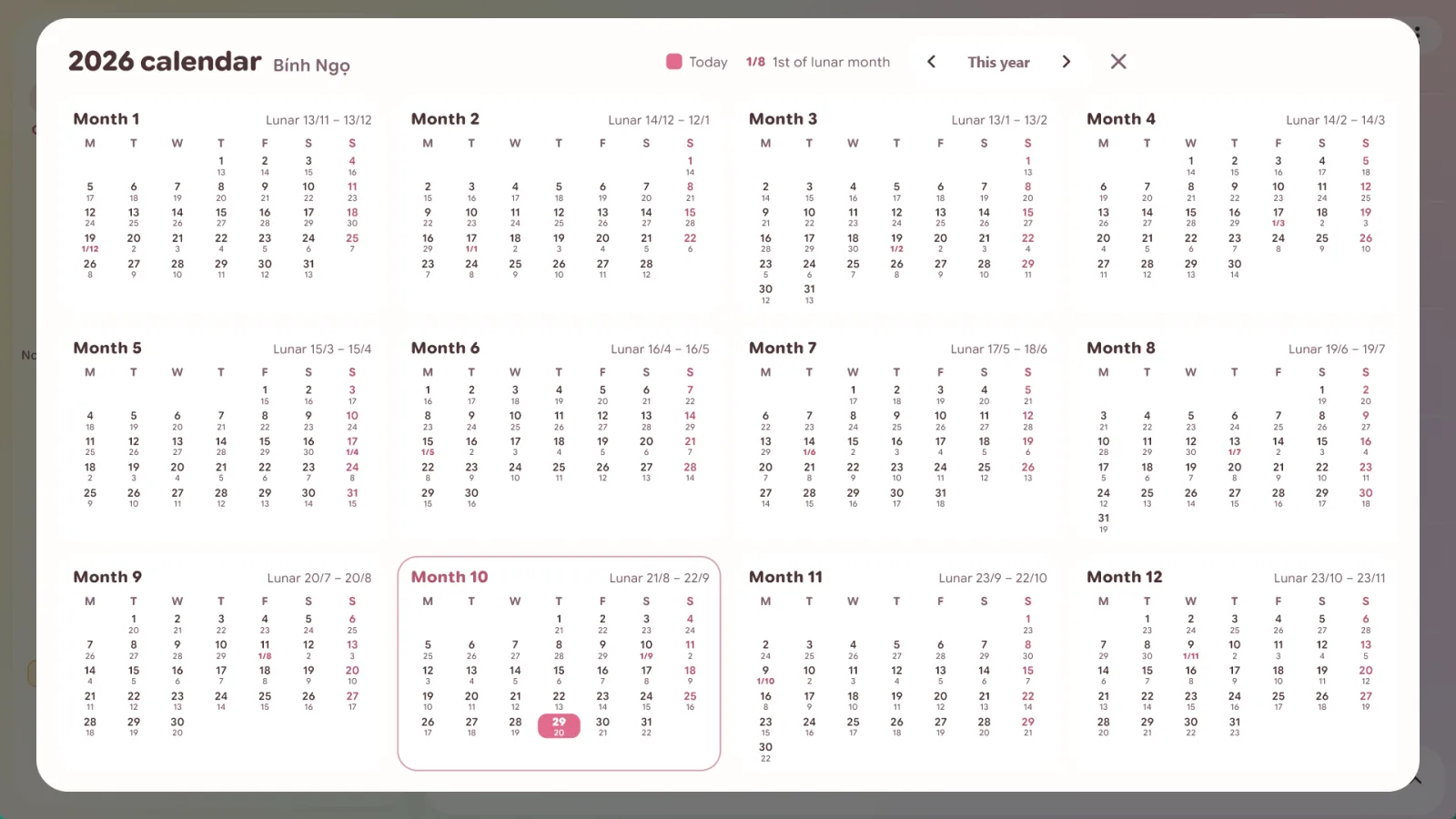
All 12 months on one screen. Each month shows the lunar range it covers, and the first day of every lunar month is highlighted, so leap, long and short months are easy to count.
Events, anniversaries and countdowns
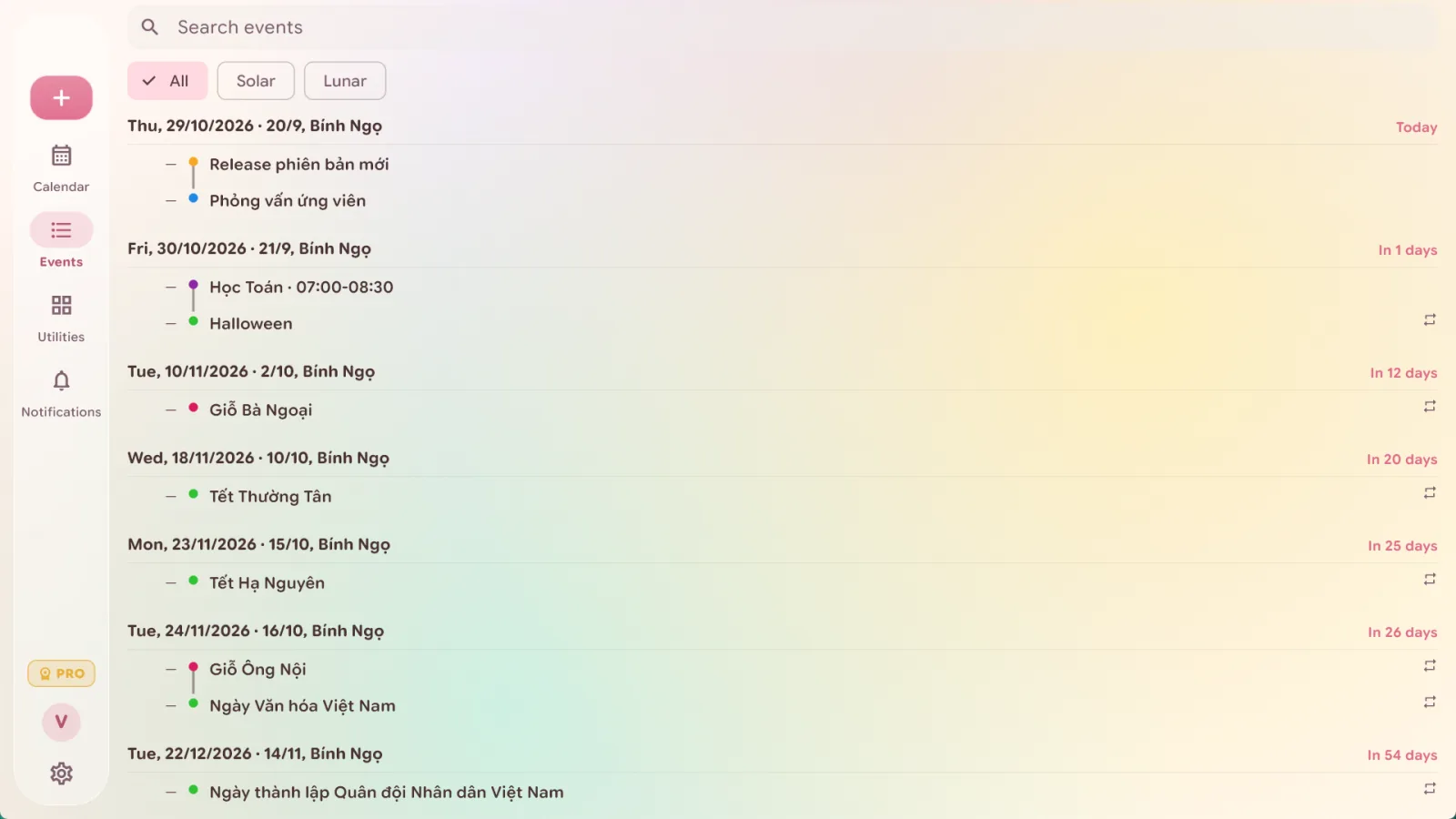
The Events tab lists what’s coming in date order, each line with its lunar date and how many days are left. Death anniversaries (giỗ), Tết and full-moon days sit together; filter by solar or lunar, or search.
Adding a giỗ on Windows needs a linked Google or Microsoft account (the event is saved to that account’s calendar). Saving lunar events and anniversaries on a computer is a Premium feature. See death anniversary reminders.
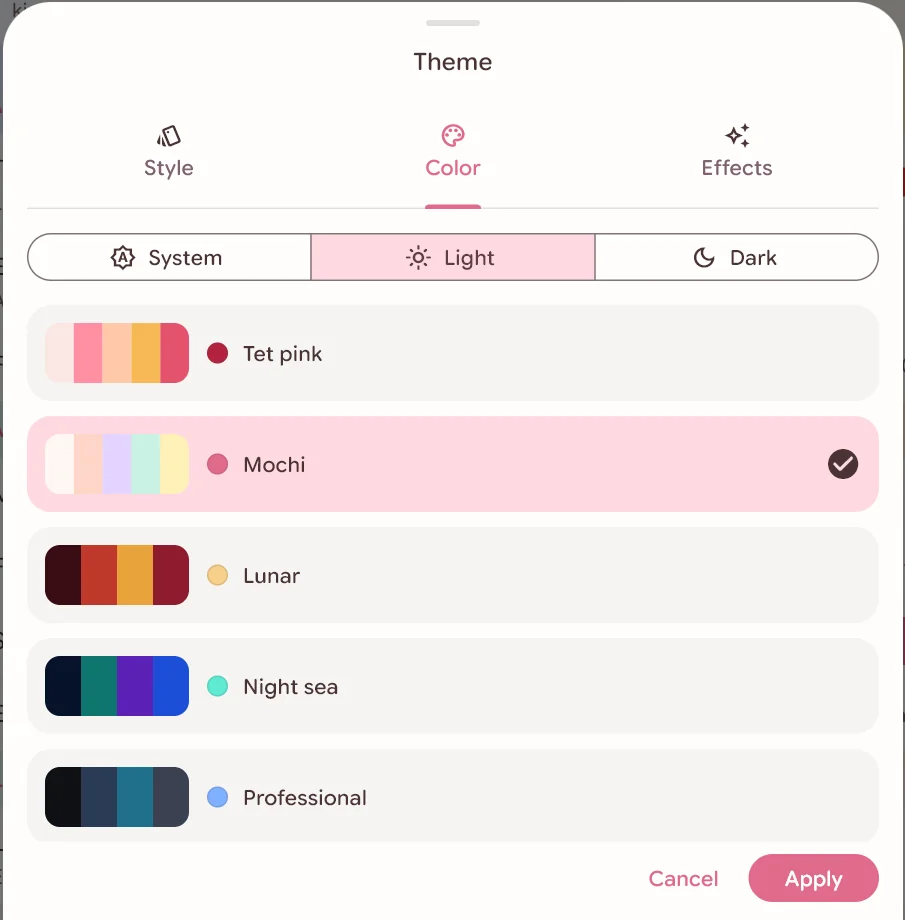
Dark mode and colour sets
Under Settings → Theme pick Light, Dark or System (follows Windows), then a colour set: Tet pink, Mochi, Lunar, Night sea, Professional and more.
Windows notifications for lunar holidays
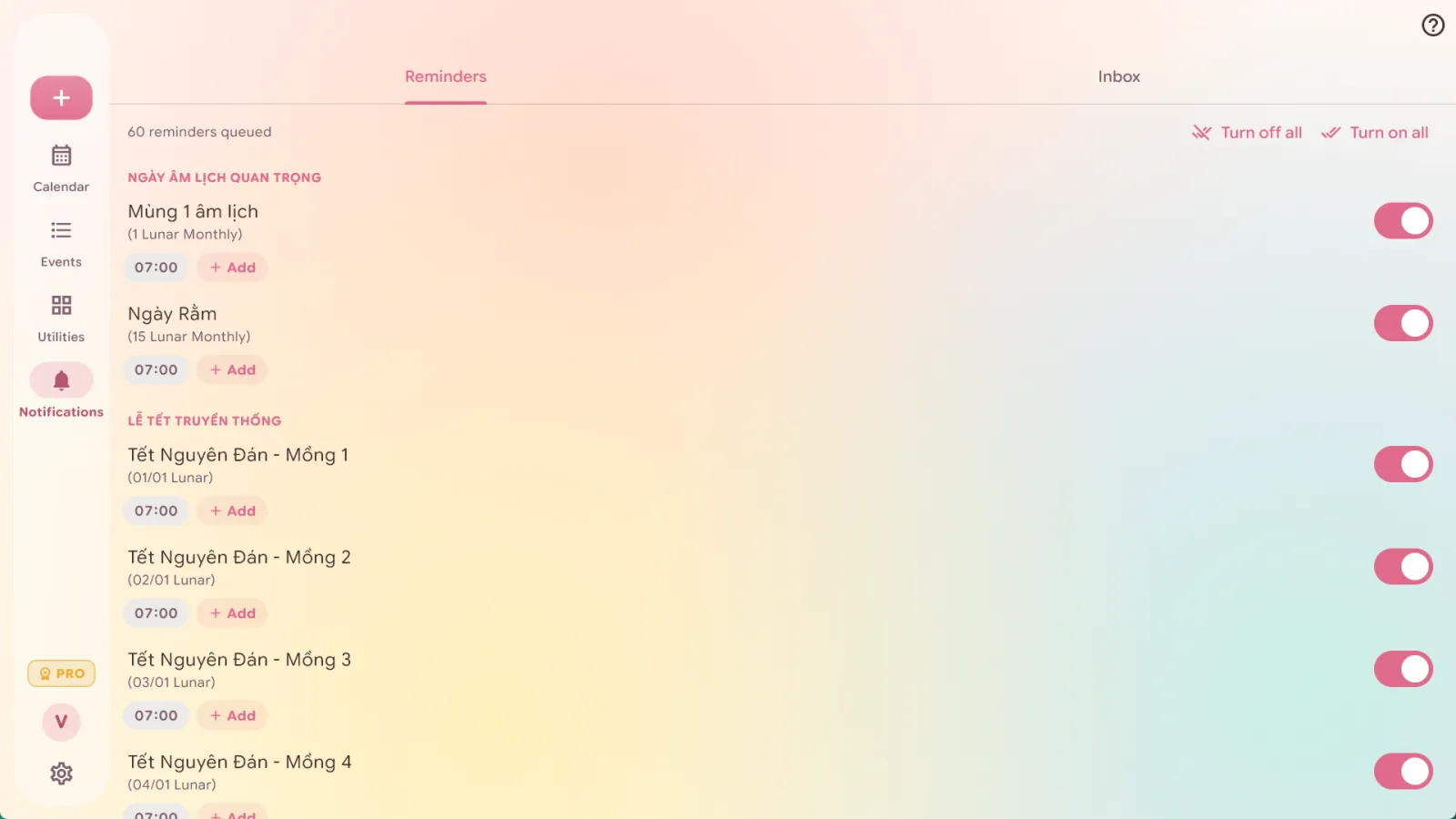
The Notifications tab comes with more than 60 reminders: the 1st and 15th of every lunar month, each day of Tết, Vu Lan, the Mid-Autumn Festival and more. Each has its own switch and time (07:00 by default), and they arrive as Windows notifications.
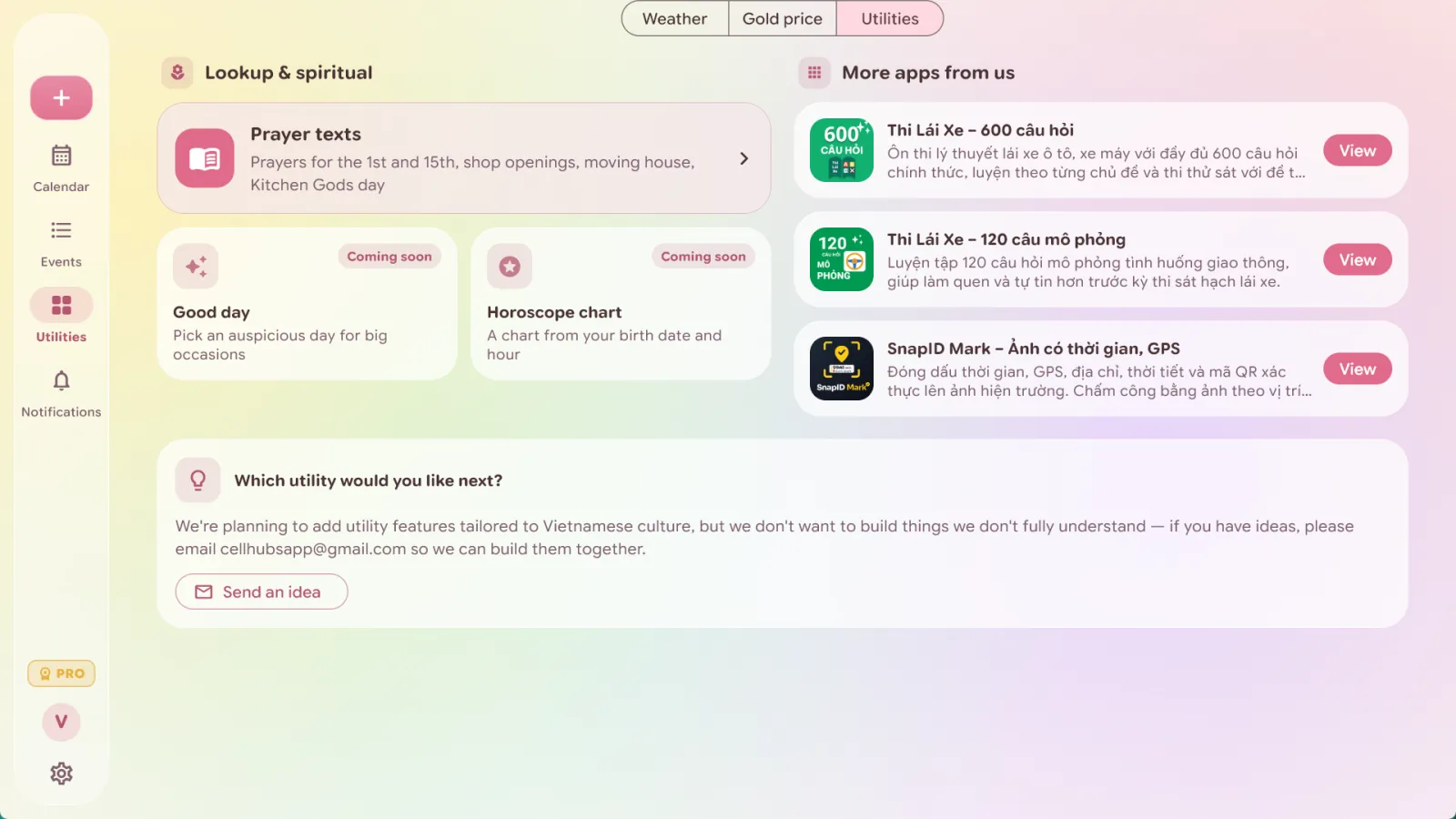
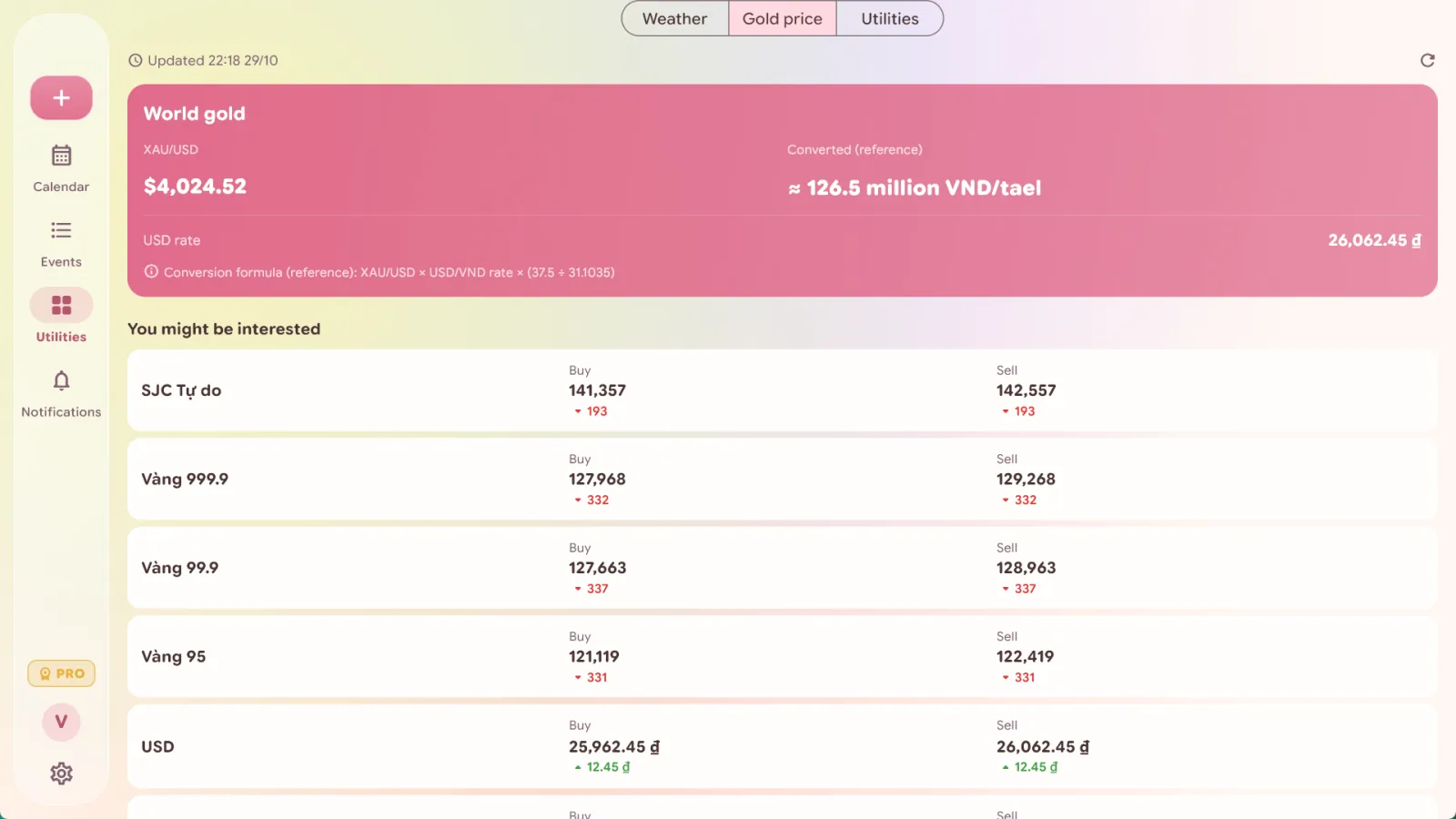
Utilities: prayers, gold prices, weather
The tray panel
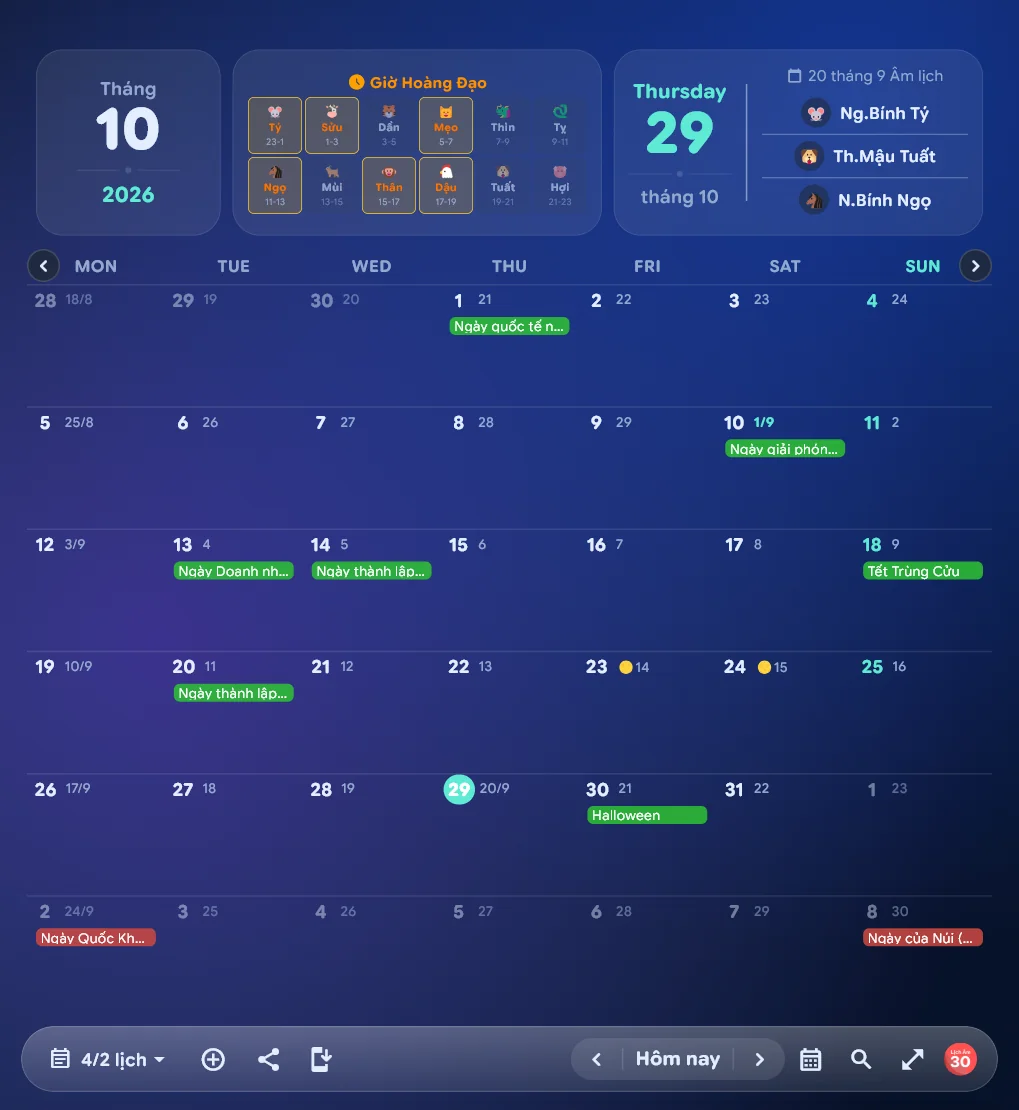
Close the window and Lịch Âm Việt stays in the system tray next to the clock, showing today’s lunar day. Click it for this panel: the auspicious hours (giờ hoàng đạo), today’s Can Chi and a month view with holidays. The tray icon and panel are free.
To keep a calendar on the desktop itself, see lunar calendar widgets for Windows. For installation and first steps, see Vietnamese lunar calendar for Windows 10 and 11.
FAQ
Is the Windows app the same as the phone app?
Same data and colours, different layout. On Windows a navigation rail, a mini month and your calendar list stay on screen while the main calendar fills the rest. Narrow the window and it switches to the phone layout.
Does it have keyboard shortcuts?
Yes, in the Liquid style shown here: Ctrl+1 to Ctrl+4 switch tabs, Ctrl+N adds an event, Ctrl+T jumps to today, Ctrl+Left and Ctrl+Right change month.
Why does my app look different from these screenshots?
These screenshots use the Liquid style. Choose it under Settings, Theme, Style. The other styles have the same features.
 lichamviet.com