 Lịch Âm Việt
Vietnamese Lunar Calendar for Windows 10 and 11: Tray App
· 4 min read
On Windows, Lịch Âm Việt puts a small icon in the system tray, next to the clock, showing today’s lunar day number. Hover over it for the full lunar date and Can Chi; click it for a quick panel with a month view and the auspicious hours. It runs on Windows 10 (version 1809 or later) and Windows 11.
Get it from the Microsoft Store, where it is listed as Lịch Âm Việt - đa nền tảng (“multi-platform”).
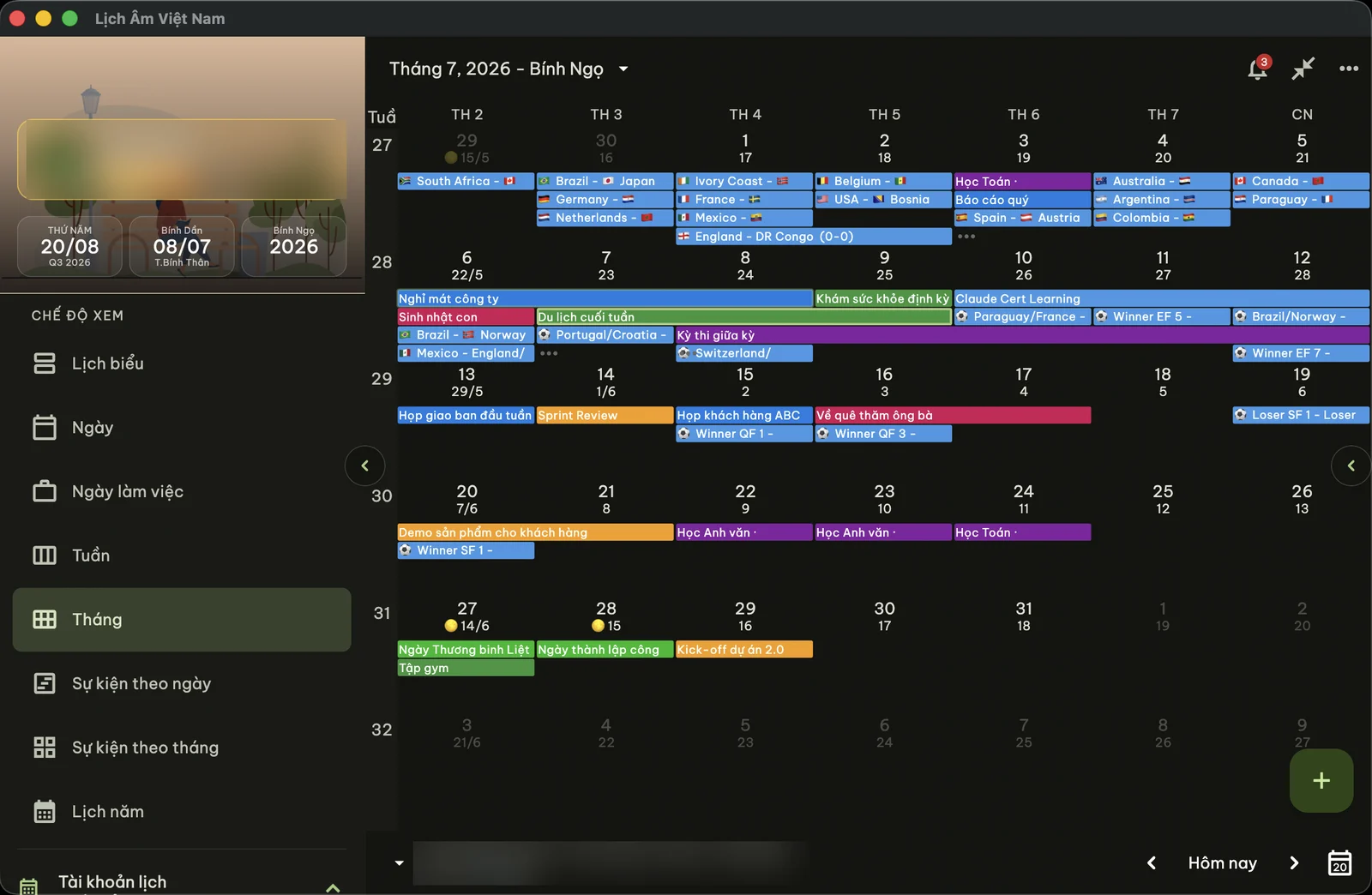
Screenshot taken on macOS; the Windows main window has the same layout.
Install from the Microsoft Store
- Open the Microsoft Store and search for “Lịch Âm Việt”, or open this link.
- Click Get or Install and wait for it to finish.
- Open the app from the Start menu.
- Allow notifications when Windows asks, so holiday reminders can reach you.
The app has a Vietnamese and an English interface. Labels in this guide are quoted in Vietnamese with an English gloss.
The lunar day in the system tray
After the first launch, the tray icon shows today’s lunar day. On 17 October 2026 (the 8th day of the 9th lunar month) the icon shows 8.
Hover over it and the tooltip gives the full lunar date and the Can Chi, the traditional stem-and-branch names for the day, month and year. For that day: Giáp Tý day, Mậu Tuất month, Bính Ngọ year.
Windows 11 tends to hide new icons. To keep it visible:
- Click the ^ arrow next to the clock.
- Drag the Lịch Âm Việt icon onto the taskbar.
Or go to Settings → Personalization → Taskbar → Other system tray icons and switch it on.
The quick panel
Click the tray icon to open a panel in the corner of the screen:
- a small month calendar with the lunar date under each day and event markers,
- the 12 two-hour periods of the day with the giờ hoàng đạo (auspicious hours) marked,
- today’s Can Chi,
- an event search box,
- Đi tới ngày (go to date) to look up any day.
From the panel you can open the main window. Closing the main window leaves the tray icon in place, so the lunar date is always one glance away.
The main window
Views include Lịch biểu (schedule), Ngày (day), Ngày làm việc (work week), Tuần (week), Tháng (month), events by day or month, and a year view. Click a day to see the lunar date, whether the lunar month has 29 or 30 days, the Can Chi and the auspicious hours. For background on those hours, see what giờ hoàng đạo are.
Reminders for mùng 1, rằm and Tết
The Windows version sends notifications for built-in holidays:
- In the main window, click the bell icon.
- On the Cài đặt nhắc (reminder settings) tab, switch on mùng 1 (first of the lunar month), rằm (full-moon 15th), Tết, Vía Thần Tài, Vu Lan, Trung Thu, Ông Công Ông Táo and others.
- Reminders fire at 07:00 on the day by default. Tap the time to choose 1 to 30 days earlier and a different hour.
If you sign in, these settings sync with your phone.
Death anniversaries and family events
Windows has no shared system calendar like a phone does, so you link a calendar account inside the app:
- Open the left menu, find Tài khoản lịch (calendar accounts) and click Thêm lịch (add calendar).
- Choose Google or Microsoft (Outlook) and sign in.
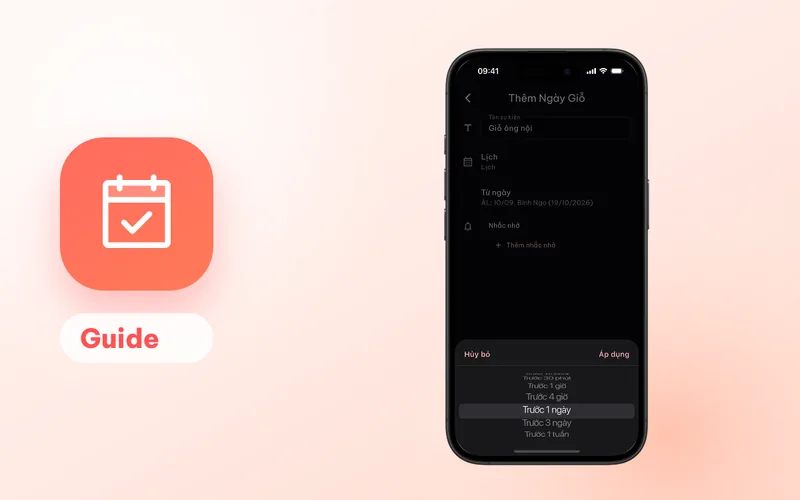
- Events from that account appear in the calendar. When you add a giỗ (+ → Ngày giỗ), it is saved to this account, and Google Calendar or Outlook sends the reminder.
A Microsoft calendar allows one reminder per event; a Google calendar allows up to five. Windows can create events but can’t edit existing ones yet. The full process is in yearly giỗ reminders.
Your phone and PC together
If you also have the app on your phone, the two work together:
- Events: link the same Google or Microsoft account on the PC that your phone uses, and every giỗ shows up in both places.
- Holiday reminders: sign in on both, and the reminders you switch on in one place are switched on in the other.
- Premium: bought on the phone, used on the PC through the same account.
Start with Windows
Turn on the start-with-Windows option in the app’s settings so the lunar date is in the tray every time you turn on the PC.
What the Windows version doesn’t have
- No desktop widgets (these exist on Android, iPhone and Mac).
- No in-app purchase. If you have Premium from your phone, sign in with the same account.
- No editing of existing events, as noted above.
On a MacBook instead? See the Mac guide. Comparing all computer options: Vietnamese lunar calendar for your computer.
FAQ
Which Windows versions are supported?
Windows 10 version 1809 or later, and Windows 11. Install it from the Microsoft Store, where it is listed as Lịch Âm Việt - đa nền tảng.
I can't see the lunar date icon in the tray. Where is it?
Windows often hides new tray icons behind the ^ arrow next to the clock. Drag the icon onto the taskbar, or turn it on under Settings, Personalization, Taskbar, Other system tray icons.
Can I add a death anniversary on Windows?
Yes, after linking a Google or Microsoft account in the app. The giỗ is saved to that account's calendar, which sends the reminder. Events can't be edited on Windows yet; edit them on your phone or in Google Calendar or Outlook.
How do I get Premium on Windows?
There is no in-app purchase on Windows. Buy Premium on your phone, then sign in with the same account on your PC.
 lichamviet.com