 Lịch Âm Việt
Vietnamese Lunar Calendar on Xiaomi, OPPO, vivo: Reliable Alerts
· 4 min read
Xiaomi (including Redmi and POCO), OPPO (and realme) and vivo phones are designed to save battery by closing apps in the background. That’s good for battery life, but it can delay a lunar calendar’s reminders or stop its widget from switching to the new day at midnight.
This guide sets up Lịch Âm Việt on these phones and walks through the settings that make reminders for giỗ (death anniversaries), mùng 1 (first of the lunar month) and rằm (full-moon 15th) arrive on time.
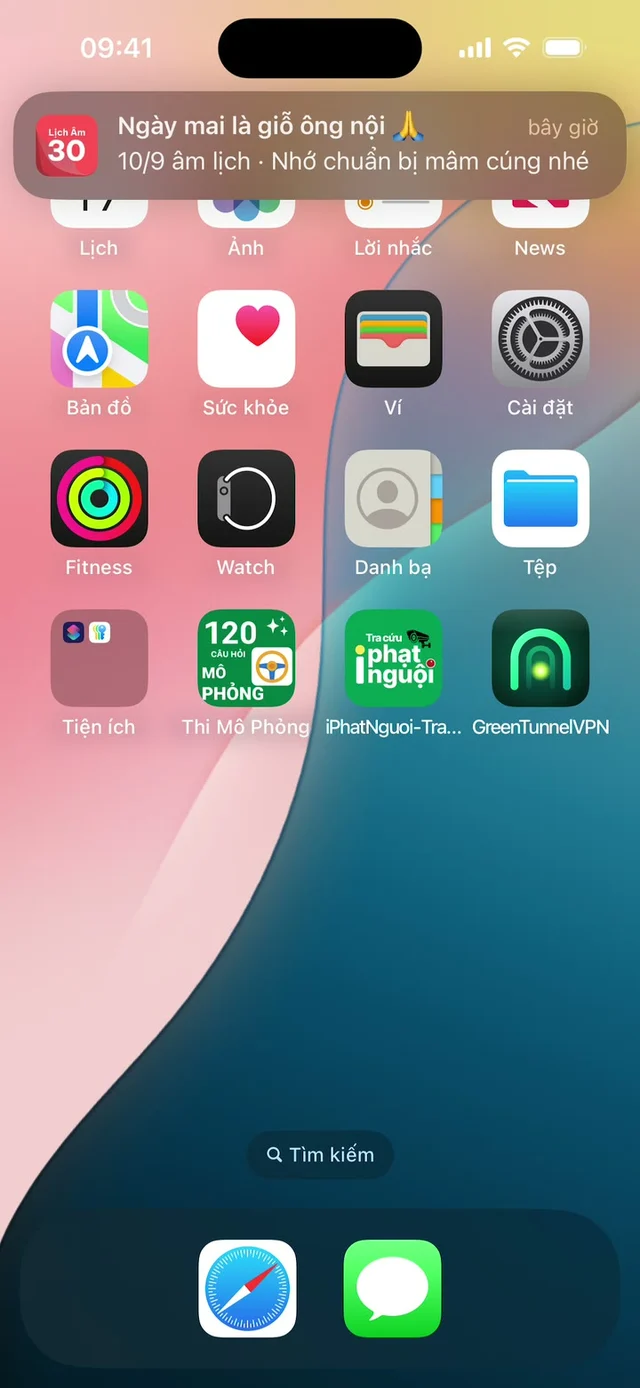
Screenshot from an iPhone; on Android the notification follows your phone’s style.
Install the app
- Open Google Play and search for “Lịch Âm Việt”, or use this link.
- Install and open the app.
- Allow Calendar access and notifications.
The app has Vietnamese and English interfaces. The setup steps for widgets and events are the same as on any Android phone, so see the Android guide for the basics.
Two kinds of reminders, two apps to allow
It helps to know who sends what:
| Reminder | Sent by | What it needs |
|---|---|---|
| mùng 1, rằm, Tết, Vu Lan and other built-in holidays | Lịch Âm Việt | Notifications on, background activity allowed |
| Your giỗ, lunar birthdays and other events | The calendar app the event is saved in (for example Google Calendar) | That app’s notifications on, background activity allowed |
Lịch Âm Việt writes your events into the phone’s calendar, so the reminder for a giỗ comes from the calendar app, not from Lịch Âm Việt. If one kind of reminder works and the other doesn’t, you know which app to check.
Settings to change
Menu names differ between versions of each phone’s system (MIUI and HyperOS on Xiaomi, ColorOS on OPPO and realme, Funtouch OS and OriginOS on vivo). Look for these four things, for Lịch Âm and for your calendar app. If a menu isn’t where this guide says, use the search box at the top of Settings and type “autostart”, “battery” or “background”.
1. Autostart (auto launch)
Lets the app run its midnight widget update and schedule notifications after a restart.
- Xiaomi, Redmi, POCO: Settings → Apps → Manage apps → Lịch Âm → Autostart on.
- OPPO, realme: Settings → Apps → App management → Lịch Âm → look for Auto launch or Allow auto launch.
- vivo: Settings → Apps (or i Manager) → Autostart → turn on Lịch Âm.
2. Battery: no restrictions
- Xiaomi: app info → Battery saver → No restrictions.
- OPPO, realme: app info → Battery usage → allow background activity.
- vivo: Settings → Battery → background power consumption → allow Lịch Âm to run in the background.
3. Notifications
App info → Notifications → allow all notifications, and if offered, allow them on the Lock Screen and as banners (floating notifications).
4. Lock the app in recent apps
Open the recent apps screen, then touch and hold Lịch Âm (or swipe down on it, depending on the phone) and choose the lock icon. Locked apps aren’t closed when you tap “clear all”.
Set up a giỗ with reminders
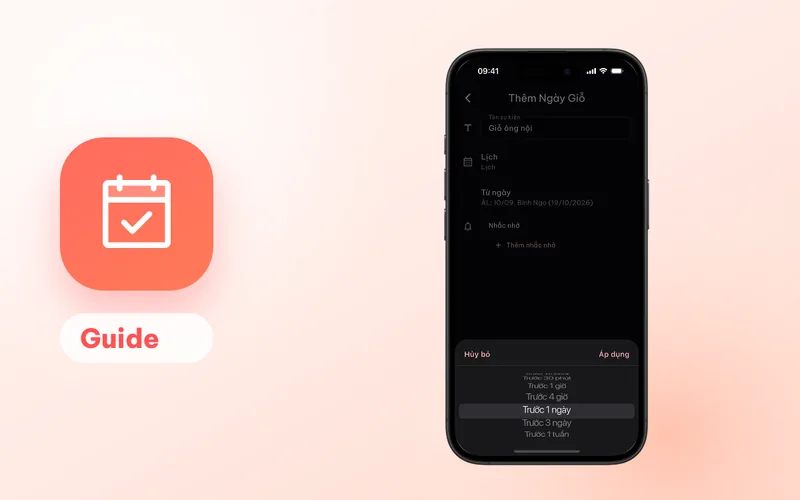
- Tap + and choose Ngày giỗ (death anniversary).
- Enter a name and pick the calendar to save it in. A Google account is a good choice because the giỗ then also appears on your other devices.
- Pick the date, switching the picker to Âm (lunar) if you know the lunar date.
- Add reminders. Options run from Trước sự kiện (at the time of the event) through Trước 1 ngày (1 day before), Trước 3 ngày (3 days before) and Trước 1 tuần (1 week before). A Google calendar allows up to 5 per event.
- Save.
Because a giỗ is an all-day event, Trước 1 ngày fires at midnight at the start of the previous day. If you’d rather not get it overnight, pick Trước 3 ngày or Trước 1 tuần as well. The full walkthrough is in yearly giỗ reminders.
Turn on mùng 1 and rằm reminders
- Tap the bell icon, then Cài đặt nhắc (reminder settings).
- Switch on Mùng 1 âm lịch and Ngày Rằm, plus any festivals you keep.
- They fire at 07:00 by default. Tap the time to change it, or remind 1 to 30 days ahead.
Check that it stuck
- Restart the phone, then open app info for Lịch Âm again and confirm autostart, battery and notification settings are still allowed.
- Do the same for your calendar app.
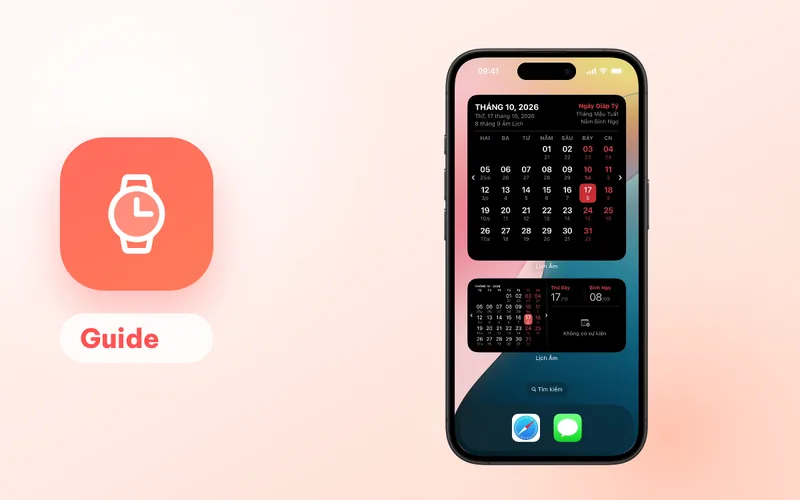
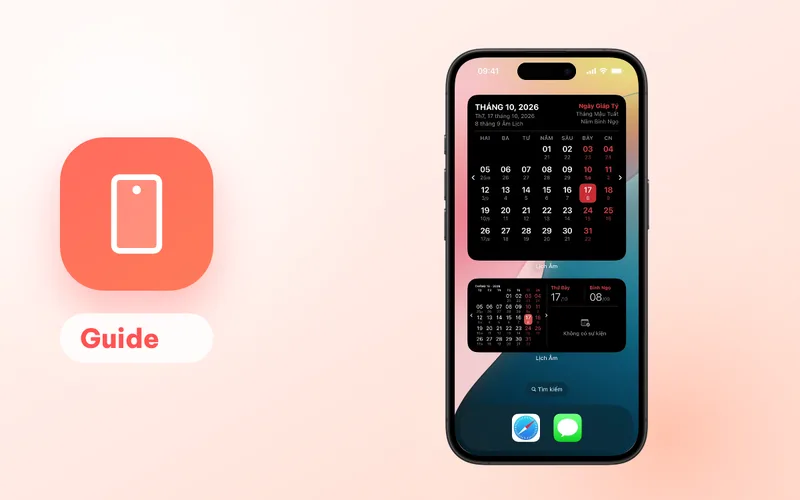
- The next morning, check that the widget shows the new lunar date. If it doesn’t, go back to the autostart and battery steps.
The next mùng 1 or rằm is also a natural test: the reminder should arrive at the time you set.
Still not working?
- Some phones have a separate “battery saver” or “ultra power saving” mode that overrides app settings. Turn it off, or add Lịch Âm to its allowed list.
- After a system update, check the settings again; updates sometimes reset them.
- Check the calendar app’s own reminder settings, in case it mutes notifications for all-day events.
Have a Samsung phone in the family too? See the Samsung guide.
FAQ
Why are my lunar calendar reminders late or missing on Xiaomi, OPPO or vivo?
These phones close background apps aggressively to save battery. Allow autostart (auto launch) for Lịch Âm, set its battery use to no restrictions, and lock it in the recent apps screen.
Which app sends my giỗ reminder?
The calendar app the event is saved in, such as Google Calendar or the phone's own calendar. Lịch Âm Việt writes the giỗ into that calendar, so that app needs notification and battery permissions too.
Which app sends mùng 1 and rằm reminders?
Lịch Âm Việt itself. Turn them on under the bell icon, Cài đặt nhắc (reminder settings), and make sure the app is allowed to show notifications.
My widget still shows yesterday's date. What should I check?
The widget switches day at midnight using a background task. Allow autostart and remove battery restrictions for Lịch Âm, then wait for the next midnight or open the app once.
 lichamviet.com