 Lịch Âm Việt
Vietnamese Lunar Calendar on Samsung Galaxy: Widgets, Giỗ
· 4 min read
A Samsung Galaxy phone works well with a lunar calendar: plenty of room for widgets, and a calendar app that shows events from your Google account. This guide shows how to set up Lịch Âm Việt on a Galaxy phone so you can see lunar dates at a glance and never miss a giỗ (death anniversary), mùng 1 (first day of the lunar month) or rằm (full-moon 15th).
Everything in the Android guide applies; this page adds the Samsung-specific steps.
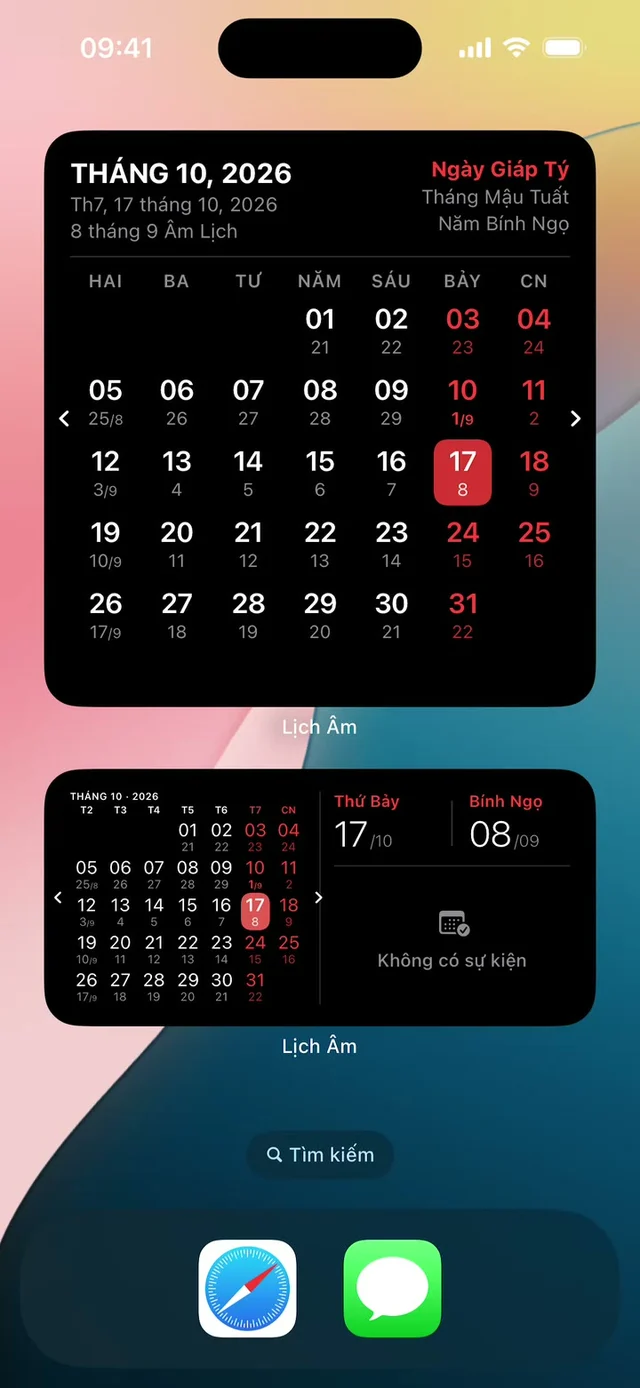
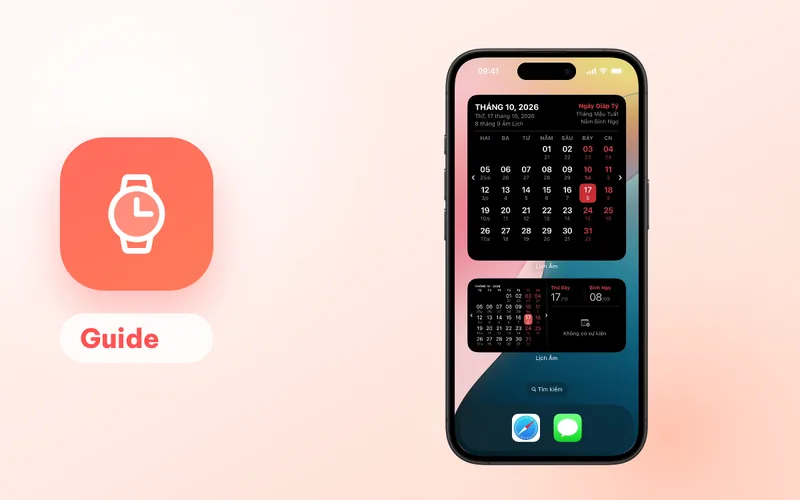
Screenshot from an iPhone; on Android the widgets have their own designs.
1. Install
- Open Google Play (not Galaxy Store) and search for “Lịch Âm Việt”, or use this link.
- Install and open the app.
- Allow Calendar access and notifications when asked.
The app is available in Vietnamese and English. This guide quotes Vietnamese labels with an English gloss.
2. Put the lunar date on the home screen
Android gets 12 widgets in this app. A few to start with:
- Ngày hôm nay (today, 2x1): solar and lunar date in a small tile.
- Lịch tháng (month, resizable from 2x2 up to 4x5): the whole month with lunar dates and event dots.
- Lịch vạn niên (almanac, small, medium or large): lunar date, good or bad day, solar term, Can Chi, auspicious hours and upcoming events.
To add one on One UI:
- Touch and hold an empty part of the home screen.
- Tap Widgets.
- Search for or scroll to Lịch Âm and tap it to see all widgets.
- Touch and hold the widget you want, drag it to the screen and let go.
- To resize, touch and hold the widget and drag the handles.
In the app’s settings, under Nền widget (widget background), you can change the background opacity, background colour and text colour, separately for light and dark mode.
3. Add a giỗ that repeats by the lunar date
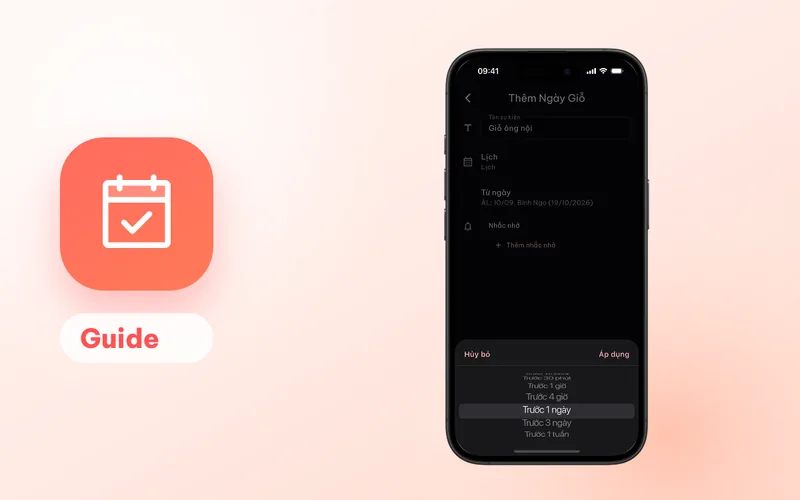
- In Lịch Âm Việt, tap + and choose Ngày giỗ (death anniversary).
- Enter a name, for example “Giỗ ông nội” or “Grandpa’s death anniversary”.
- Under Lịch (calendar), pick the account to save it in. Choosing your Google account means the event also shows up in Google Calendar on other devices.
- Pick the date, switching the picker to Âm (lunar) if you know the lunar date.
- Add reminders and save.
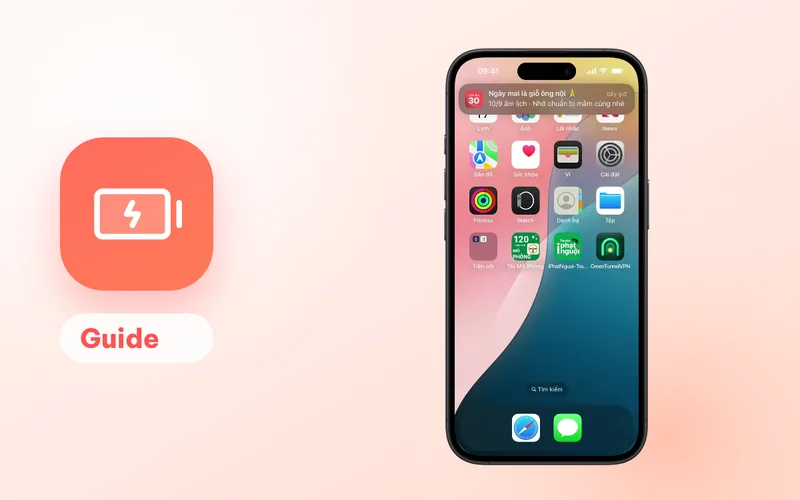
The event is written into the phone’s calendar for many years ahead, one occurrence per year, each on the correct solar date. Because Samsung Calendar and other calendar apps on the phone read the same calendar storage, the giỗ also appears there if that account is visible in the app. The reminder is delivered by the calendar app, so make sure its notifications are on.
More on choosing reminder times: yearly giỗ reminders.
4. Turn on mùng 1, rằm and Tết reminders
- Tap the bell icon on the calendar screen.
- Open Cài đặt nhắc (reminder settings).
- Switch on what your family observes: mùng 1, rằm, Tết days 1 to 5, Vía Thần Tài, Vu Lan, Trung Thu, Ông Công Ông Táo and more.
These reminders are notifications from Lịch Âm Việt itself, at 07:00 on the day by default. You can change the time and remind 1 to 30 days ahead.
5. Check Samsung battery settings
One UI limits background activity for apps it thinks you don’t use. That can stop the widget from switching to the new day at midnight, and can delay notifications. If you notice either:
- Open Settings → Apps → Lịch Âm → Battery and choose Unrestricted.
- In Settings → Battery → Background usage limits, make sure Lịch Âm isn’t listed under sleeping or deep sleeping apps. You can add it to Never sleeping apps.
- Do the same for the calendar app that sends your giỗ reminders, if you see delays there.
Menu names can differ slightly between One UI versions. The goal is the same: let Lịch Âm run in the background.
6. Make it easy for parents and grandparents
If you are setting up a phone for an older relative:
- Turn on Chế độ dễ nhìn (easy-view mode): bigger text and three simple tabs, Hôm nay (today), Lịch Tháng (month) and Sự kiện (events).
- Raise the text size up to 2x in the app’s settings.
- Add a large Lịch tháng widget to the first home screen page.
- Save family giỗ dates to a shared Google calendar so the whole family sees the same list.
Premium
The app is free with ads. Premium (monthly, 3-month, yearly or lifetime) removes ads and adds gold prices and exchange rates, GPS weather with a 3-day forecast, extra calendar backgrounds, more than one reminder per built-in holiday and multiple personal timetable profiles. Points earned in the app can be exchanged for Premium.
Using a different Android brand? See Xiaomi, OPPO and vivo, which each have their own battery manager.
FAQ
Does Lịch Âm Việt work on Samsung Galaxy phones?
Yes. It is a regular Android app from Google Play, so it runs on Galaxy phones and tablets with all 12 Android widgets.
Will my giỗ show up in Samsung Calendar?
Yes, if you save it to a calendar that Samsung Calendar displays, such as your Google account. The app writes the event into the phone's calendar, and calendar apps on the phone read from there.
Why didn't the widget change to the new day at midnight?
The widget updates at midnight with a background task, which battery saving can block. Set Lịch Âm's battery usage to Unrestricted and keep it out of Samsung's sleeping apps lists.
Which reminder should I pick for a giỗ?
Trước 3 ngày (3 days before) or Trước 1 tuần (1 week before) leave time to shop and cook. A Google calendar allows up to 5 reminders per event, so you can combine them.
 lichamviet.com